Search
OneNoteGem
  • Home
  • Addins
    • Windows Office Addins >
      • Gem for OneNote
      • OneNote Search Bar
      • OneNote Gem - Favorites
      • OneNote Batch
      • Pons for MindManager and OneNote
      • Mind Map for OneNote
      • Pons for Visio and OneNote
      • Row to OneNote
      • Auto OneNote
      • Favorite to OneNote
      • Bridge for EndNote and OneNote
      • Anchor to OneNote
      • Anchor to OneNote for PDF
      • Bring to OneNote
      • Gem Table for OneNote
    • Windows Cloud Addins >
      • CiteBoard for OneNote
      • OneReader
      • OneMind for Web OneNote
      • OneNote Reminder Cloud
      • OneNote Batch Cloud
    • Mac Addins >
      • Gem Menu for Mac OneNote
      • CiteBoard for OneNote
      • Bring to Mac OneNote
      • OneMind for Mac OneNote
      • OneNote Reminder for Mac
      • OneNote Batch for Mac
      • Fix One for Mac - Fix OneNote Login, Sync Tools
    • Android Addins >
      • CiteBoard for OneNote
      • Fix One for Android - Fix OneNote Login, Sync Tools
    • Cross-Platform Addins >
      • OneNote Reminder
      • OneMind for OneNote
      • CiteBoard for OneNote
      • Fix One - Fix OneNote Login, Sync Tools
    • Markdown Addins >
      • Gem for OneNote
      • One Markdown
    • Mind Map Addins >
      • OneNote Gem - Favorites
      • Pons for MindManager and OneNote
      • Mind Map for OneNote
      • Pons for Visio and OneNote
      • OneMind for OneNote
    • Other Addins >
      • Gem Menu for OneNote UWP
      • One Markdown
      • Clip to OneNote
      • WordNote
      • OneShare
      • Fix One for Windows - Fix OneNote Login, Sync Tools
      • OneNote for Windows 10 Reviver - UWP Reviver
  • Buy
  • Documents
  • FAQs
  • Templates
  • Support
  • Release
  • WordNote
Mind Map for OneNote
 
 
Using OneNote native elements to create Mind Map

How to Install Windows Fax and Scan Feature in Windows 11 for OneNote?

2026-08-21 07:49
 
In Windows 7, the "Windows Fax and Scan" feature can be installed in "Control Panel" -> "Turn on or off Windows Features" -> "Print and Document Services."
 
In Windows 11, you can also install it in System Settings. By default, the "Windows Fax and Scan" feature is not installed in the system and must be added manually.
 
Follow steps is how to install Windows Fax and Scan in Windows 11.
 

(1) System -> Optional Features

Run Windows 11 Settings, System -> Optional Features
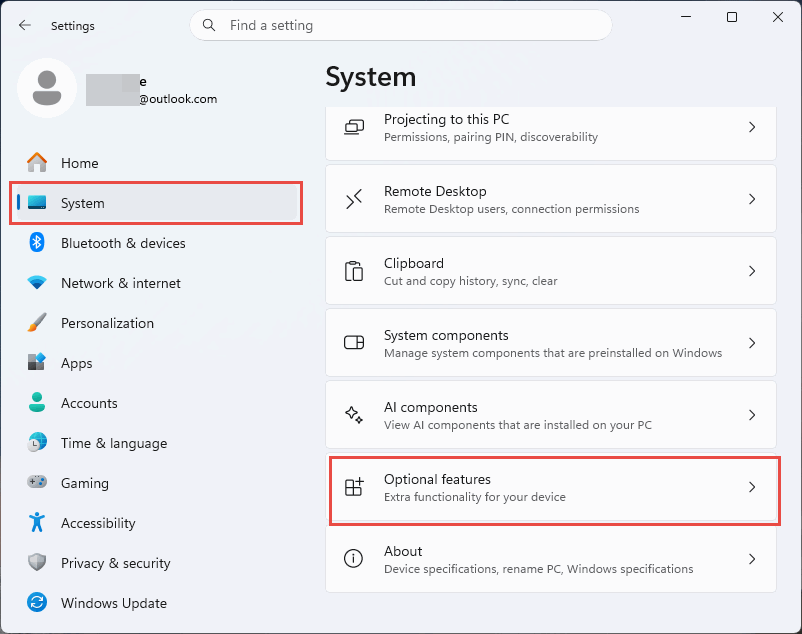

System -> Optional Features

(2) View Features

After Entering the optional features interface, click the [View features] button.
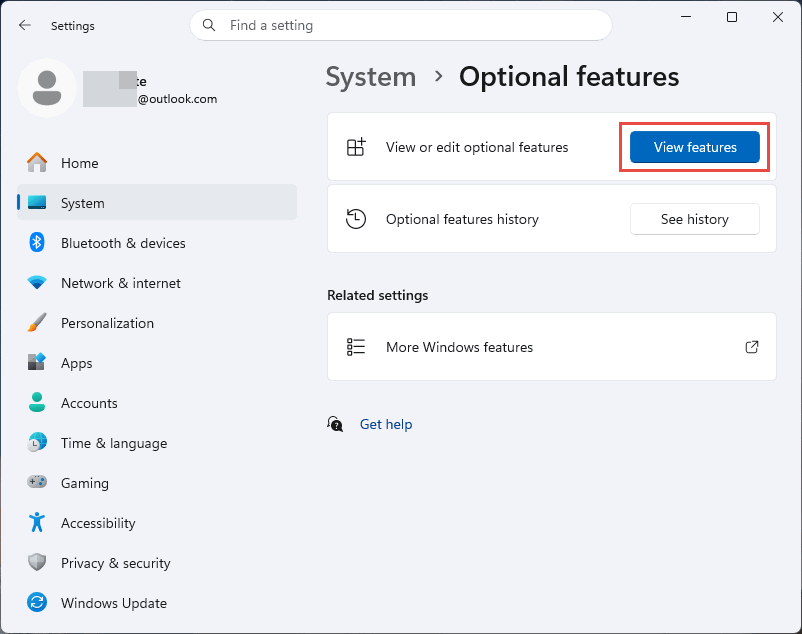

View Features


(3) Search and Install Windows Fax and Scan 

In the pop-up [View Features] window, input keyword "scan" to find [Windows Fax and Scan] and check it, then click "Add" button. The system will automatically download and install the feature.
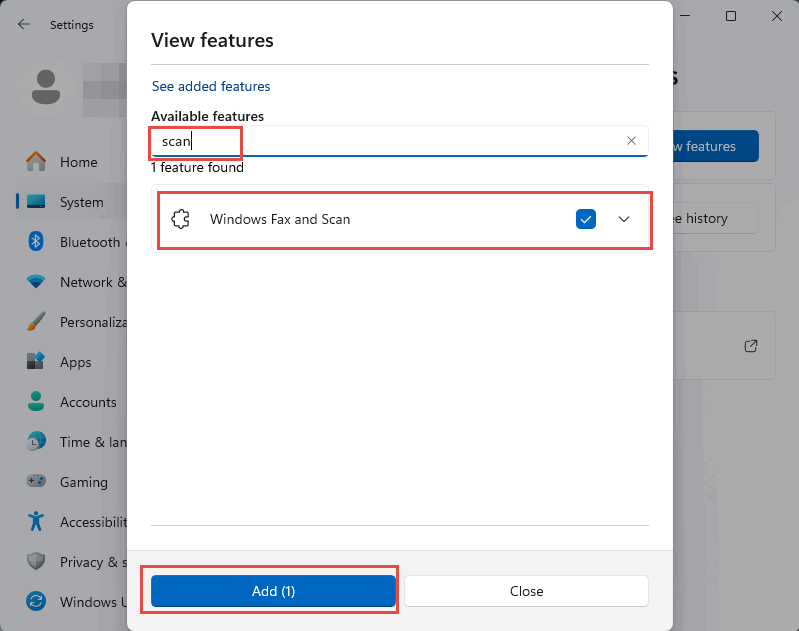
Search and Install Windows Fax and Scan

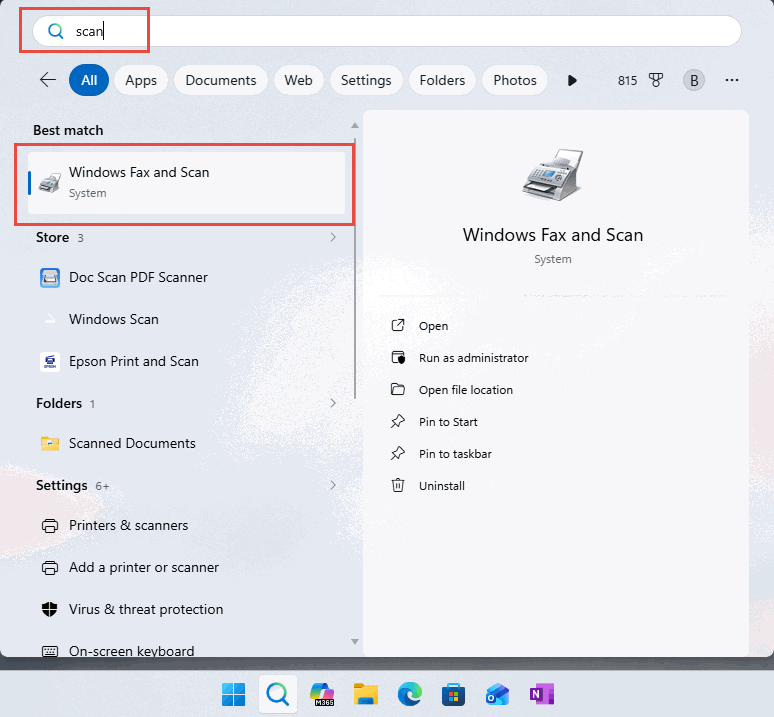
(4) Run Windows Fax and Scan

Using Windows Search feature, input "scan" keyword to find Windows Fax and Scan, then run it.


Run Windows Fax and Scan


EXE Addins Cloud Addins MAC Addins

Related Documents

  • The Meanings of Various Icons in Windows OneDrive
  • Which Version of OneNote is opened from the Microsoft 365 (Office) App on a New PC Windows 11?
  • How to Ignore the SmartScreen Filter in Windows 10 and Install Unrecognized Apps?
  • How to Stop the Windows Screen from Scaling and Revert to 100% Screen Layout?
  • 2022 both Office 365 and Click-to-Run OneNote no longer support installation on Windows 7
Command Line
Tag System
MindMap Add-Ins Comparison
Search Add-Ins Comparison
One Markdown Syntax
Table Formula
Gantt

Gem Menu Templates
Repair OneNote
OneNote Download
English website Chinese website
Mobile Site
Copyright © 2011-2026 Digital GemSoft. OneNoteGem.com All Rights Reserved.