Search
OneNoteGem
  • Home
  • Addins
    • Windows Office Addins >
      • Gem for OneNote
      • OneNote Search Bar
      • OneNote Gem - Favorites
      • OneNote Batch
      • Pons for MindManager and OneNote
      • Mind Map for OneNote
      • Pons for Visio and OneNote
      • Row to OneNote
      • Auto OneNote
      • Favorite to OneNote
      • Bridge for EndNote and OneNote
      • Anchor to OneNote
      • Anchor to OneNote for PDF
      • Bring to OneNote
      • Gem Table for OneNote
    • Windows Cloud Addins >
      • CiteBoard for OneNote
      • OneReader
      • OneMind for Web OneNote
      • OneNote Reminder Cloud
      • OneNote Batch Cloud
    • Mac Addins >
      • Gem Menu for Mac OneNote
      • CiteBoard for OneNote
      • Bring to Mac OneNote
      • OneMind for Mac OneNote
      • OneNote Reminder for Mac
      • OneNote Batch for Mac
      • Fix One for Mac - Fix OneNote Login, Sync Tools
    • Android Addins >
      • CiteBoard for OneNote
      • Fix One for Android - Fix OneNote Login, Sync Tools
    • Cross-Platform Addins >
      • OneNote Reminder
      • OneMind for OneNote
      • CiteBoard for OneNote
      • Fix One - Fix OneNote Login, Sync Tools
    • Markdown Addins >
      • Gem for OneNote
      • One Markdown
    • Mind Map Addins >
      • OneNote Gem - Favorites
      • Pons for MindManager and OneNote
      • Mind Map for OneNote
      • Pons for Visio and OneNote
      • OneMind for OneNote
    • Other Addins >
      • Gem Menu for OneNote UWP
      • One Markdown
      • Clip to OneNote
      • WordNote
      • OneShare
      • Fix One for Windows - Fix OneNote Login, Sync Tools
      • OneNote for Windows 10 Reviver - UWP Reviver
  • Buy
  • Documents
  • FAQs
  • Templates
  • Support
  • Release
  • WordNote
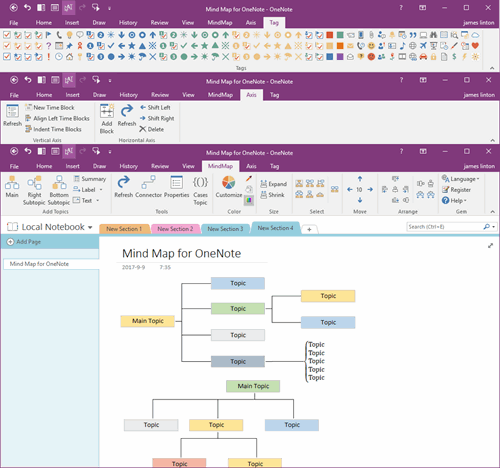
Mind Map for OneNote
 
 
Using OneNote native elements to create Mind Map

How to Save an Image from Browser to Android OneNote?

2026-10-11 05:26
 
You see a useful image in your browser and want to save it to OneNote for note-taking through an intermediate storage method, but you just can't find any entry point? One method will teach you.


Steps:

 
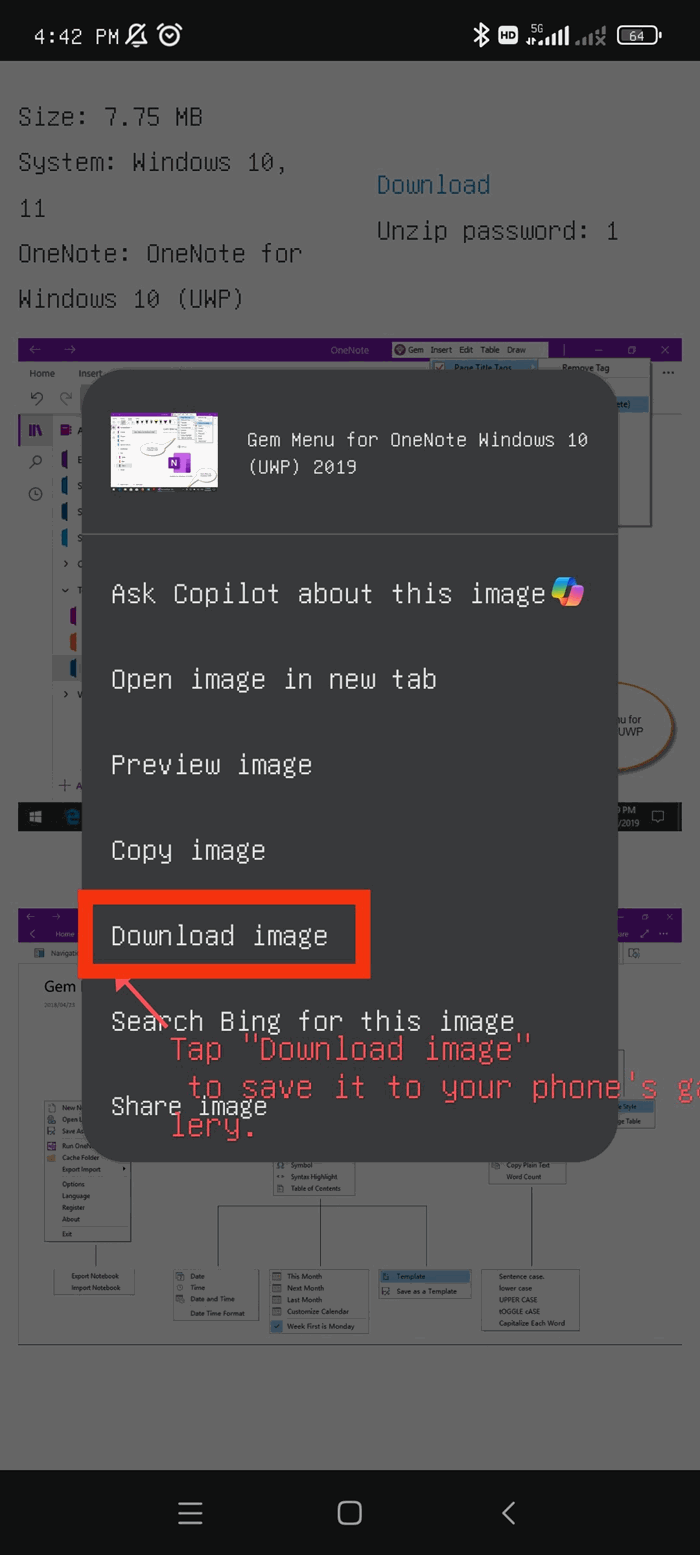
1. First, long-press the image you want to use in the browser, then tap the [Download image] option to save it to your phone's gallery.
Download image


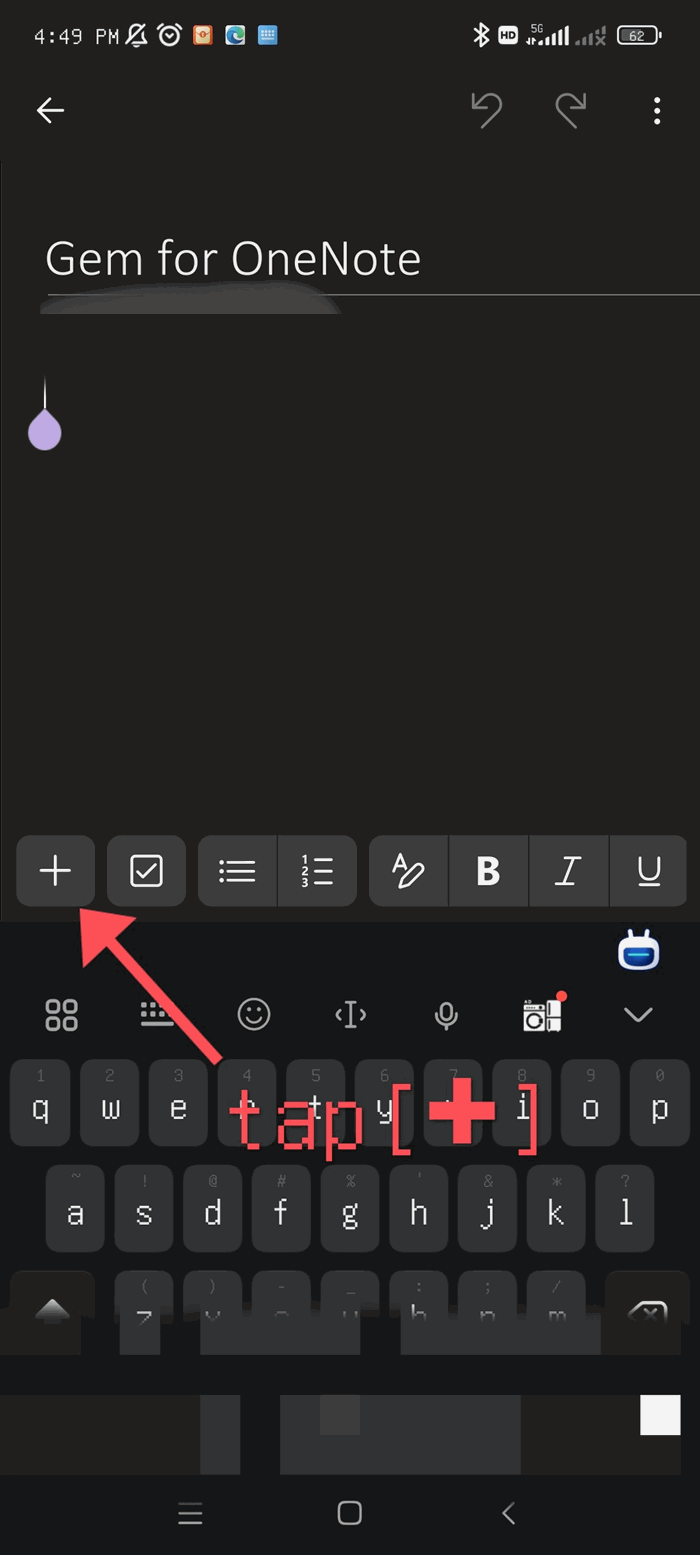
2. Go to the page where you want to insert the browser image and tap the + Insert button.
 (Any image saved to your gallery, not just from a browser, can be inserted.)
 
Insert button

 
3. On the Insert screen, tap the [Image] button and find the image you want to insert.

[Image] button


4. Then, from the recent images, choose the picture you just saved from the browser and insert it.
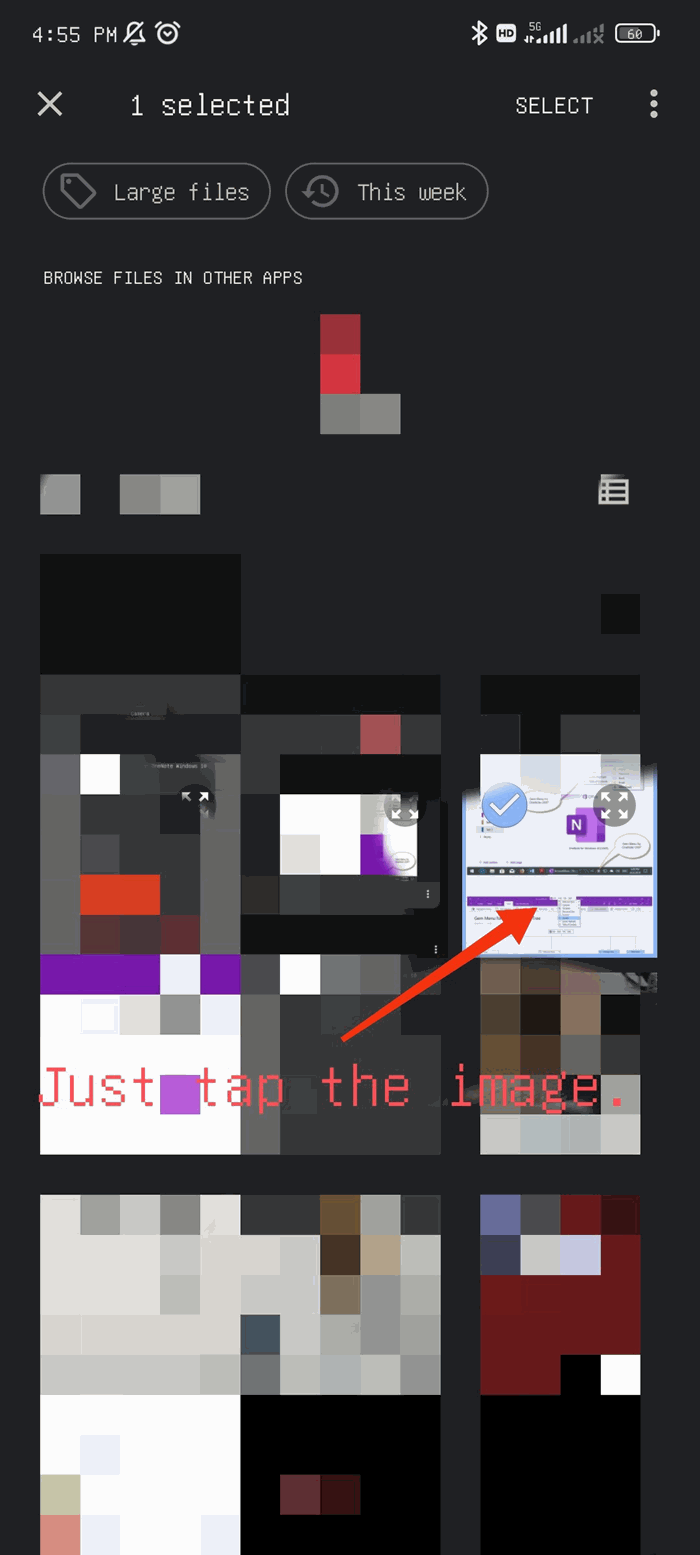
choose the picture


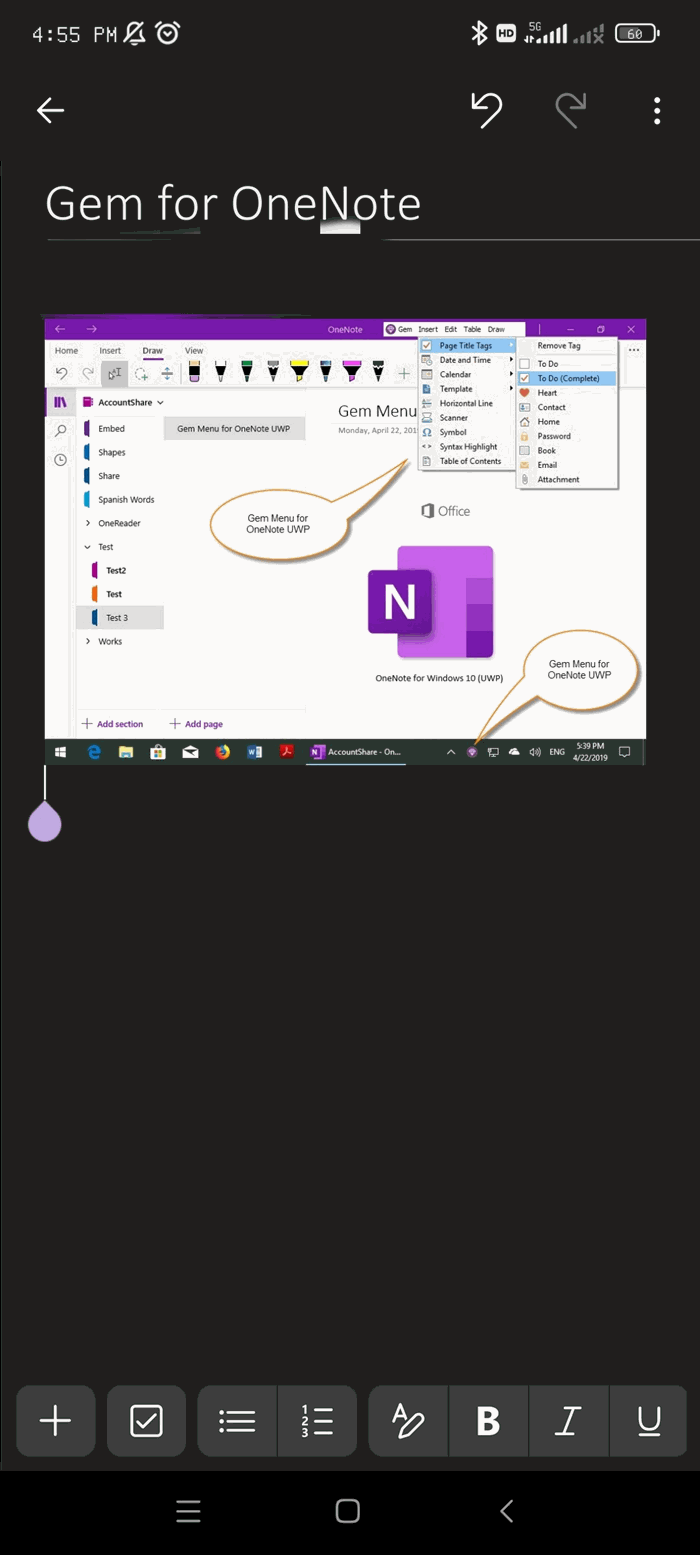
5. Below is what it looks like after insertion. 
(It can be inserted not only at the beginning, but also in the middle or at the end of the article.)
 
after insertion


Related Documents

Command Line
Tag System
MindMap Add-Ins Comparison
Search Add-Ins Comparison
One Markdown Syntax
Table Formula
Gantt

Gem Menu Templates
Repair OneNote
OneNote Download
English website Chinese website
Mobile Site
Copyright © 2011-2026 Digital GemSoft. OneNoteGem.com All Rights Reserved.