How to transfer a OneNote notebook from Microsoft Work Account to Personal Account in Mac?
2026-02-12 20:15
OneNote notebooks can be transferred between Microsoft accounts through OneNote Batch for Mac's Backup and Restore features.
Here's an example of transferring a OneNote notebook from a Microsoft work account to a Microsoft personal account.
Once you're logged in correctly, you'll see a list of all OneNote notebooks under this account on the left side of OneNote Batch for Mac.
Once you're logged in correctly, you'll see a list of all OneNote notebooks under this account on the left side of OneNote Batch for Mac.
Here's an example of transferring a OneNote notebook from a Microsoft work account to a Microsoft personal account.
Backup (Word Account)
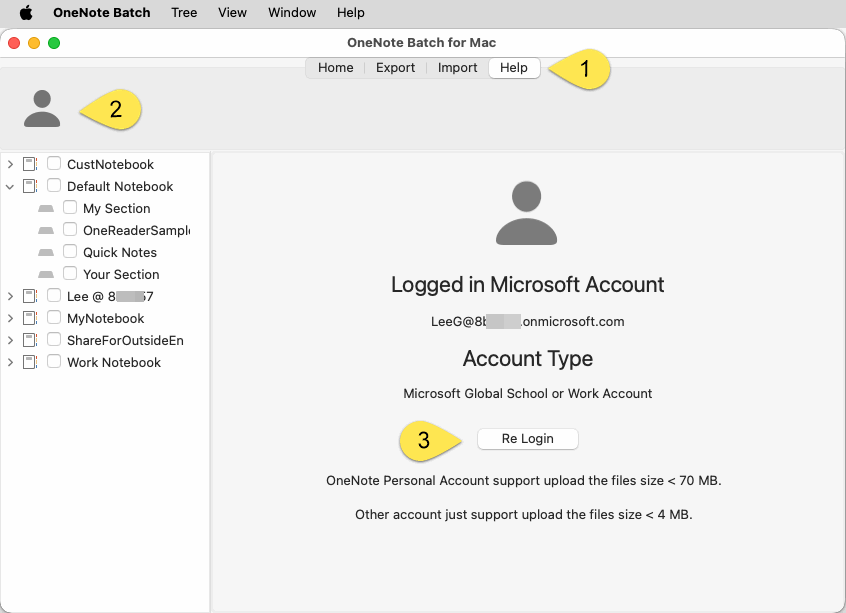
Sign in Microsoft Work Account in OneNote Batch for Mac
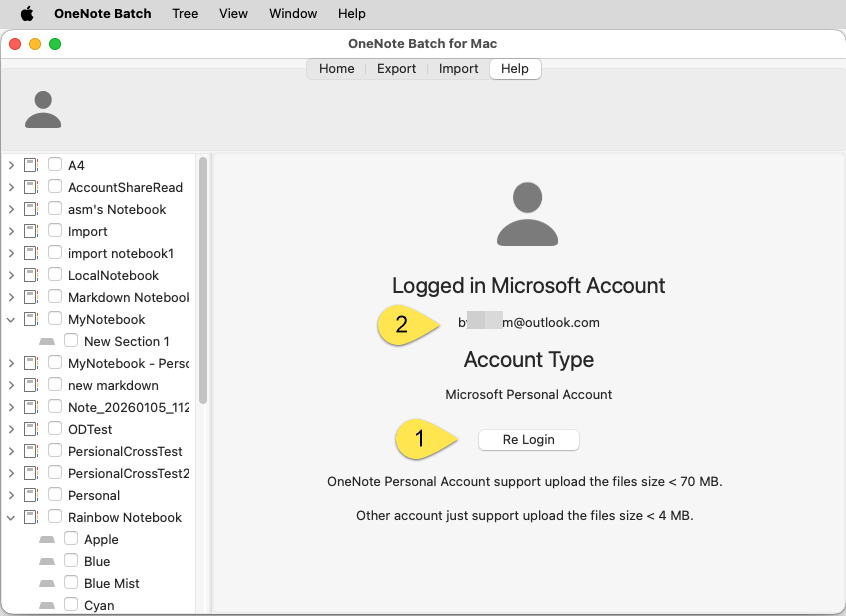
You can log in to your Microsoft work account by clicking Relogin in the Help tab -> Account feature of OneNote Batch for Mac.Once you're logged in correctly, you'll see a list of all OneNote notebooks under this account on the left side of OneNote Batch for Mac.
Backup OneNote Notebook to Local Disk
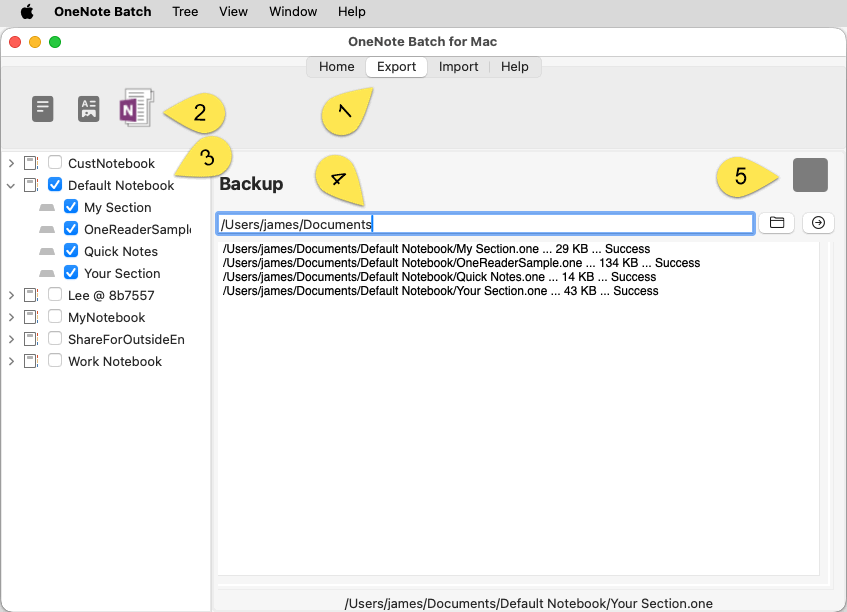
Then, still in OneNote Batch for Mac:- Click Export tab
- Click Backup feature
- In the notebook tree on the left, check the OneNote notebooks you want to back up.
- Specify a local folder in the Export Path input box.
- Finally, click the "Start" button on the right to export OneNote notebooks structure and sections one by one.
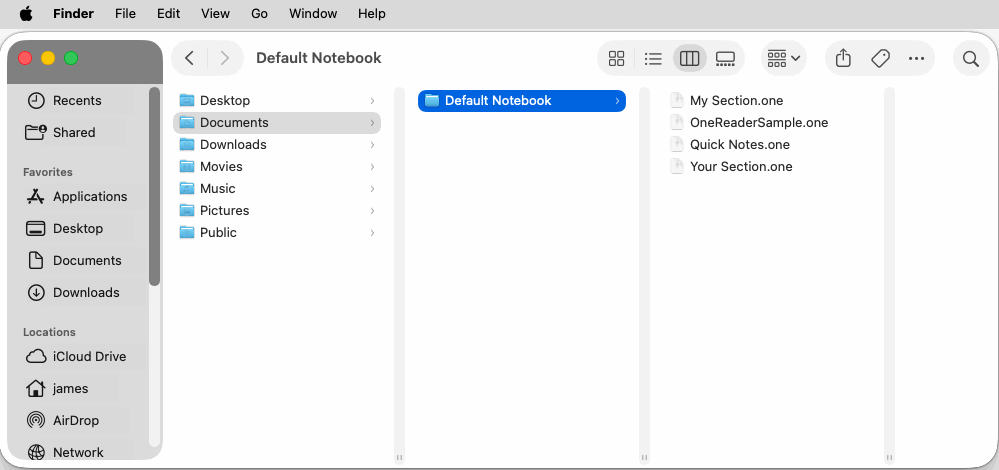
The .one Files Saved in Local Disk
You can go to the specified backup folder and see the .one files.Restore
Sign in Personal Account in OneNote Batch for Mac
In OneNote Batch for Mac, go back to the Account feature and click Relogin again to log in to your Microsoft personal account.Once you're logged in correctly, you'll see a list of all OneNote notebooks under this account on the left side of OneNote Batch for Mac.
Restore .one Files to Personal Account
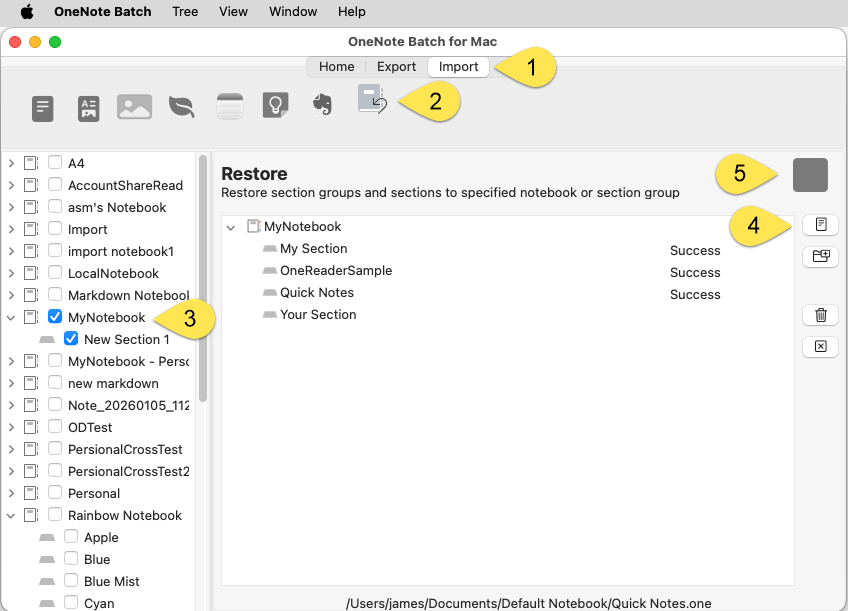
In OneNote Batch for Mac:- Click “Import” tab
- Click “Restore” feature
- In the notebook tree on the left, check the MyNotebook notebook you want to import the .one file into.
- On the right side is the ability to add single or multiple .one files or folder. These features give you a preview of the structure of your MyNotebook notebook. so that you can clearly see the imported structure tree.
- Finally, click the "Start" button to start importing.
Review the imported notebook
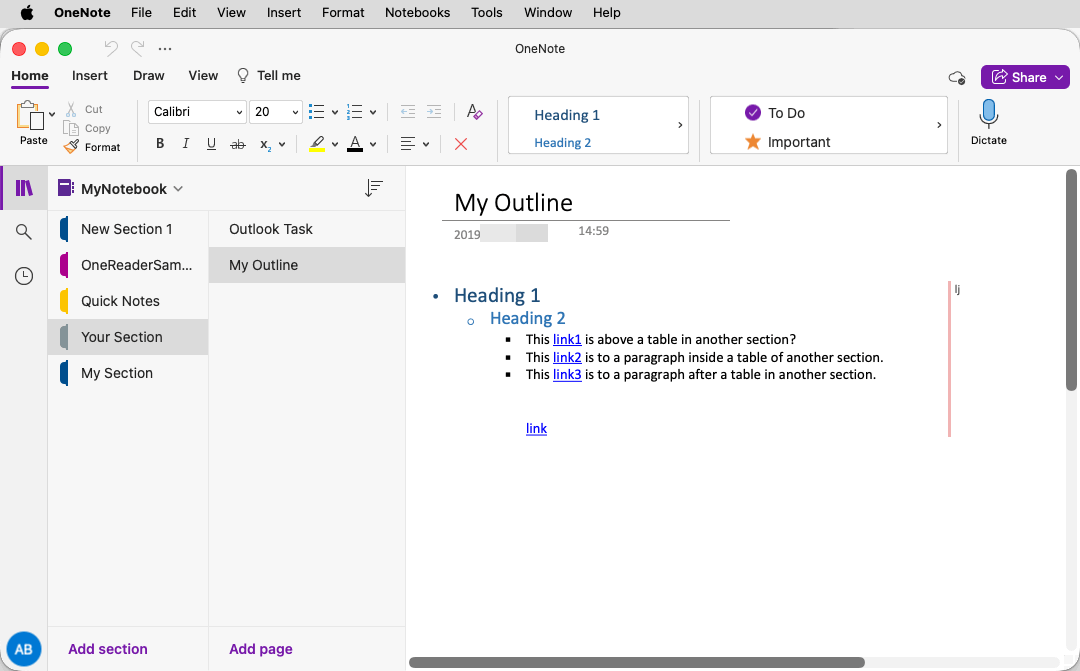
Open the MyNotebook notebook with OneNote, and then you can see the new sections or section groups imported.
