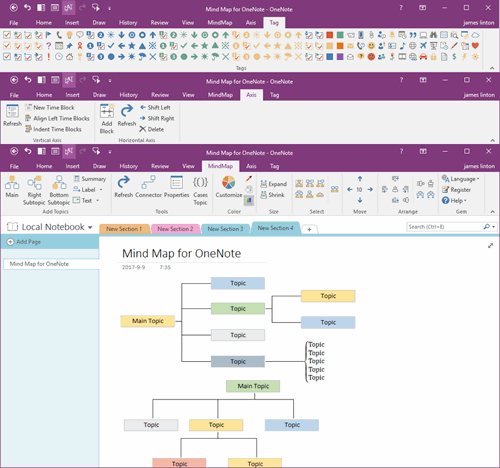
2026.7 How to Copy and Paste selected Content from OneNote 365 into other App as an Image?
2026-07-03 03:05
After July 2026, Gem for OneNote will allow you to copy selected content as an image and add it to the clipboard, making it easy to use the Ctrl+V shortcut to paste it into images in QQ.
This feature copies the selected content and places it in image format on the clipboard.
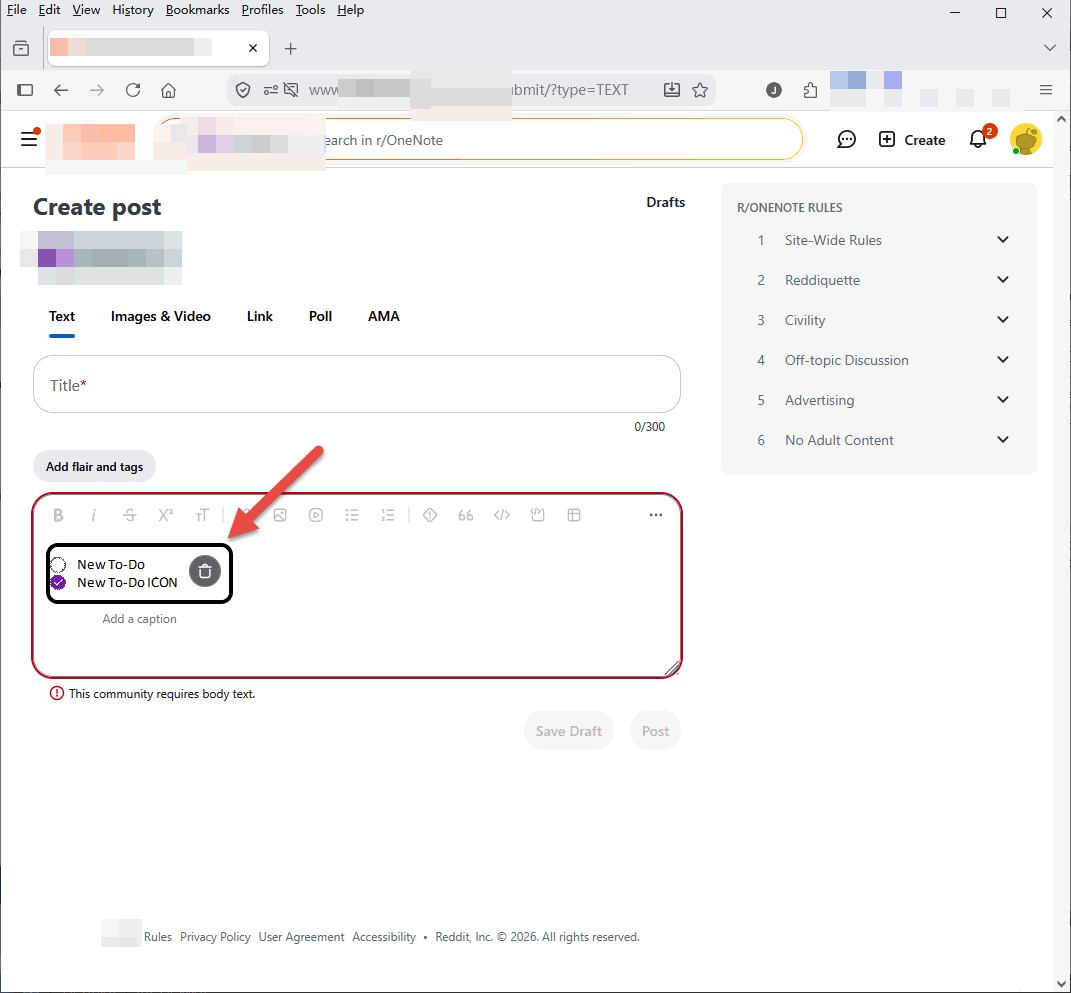
You can see that the pasted content is in image format.
Copy the Content into an Image
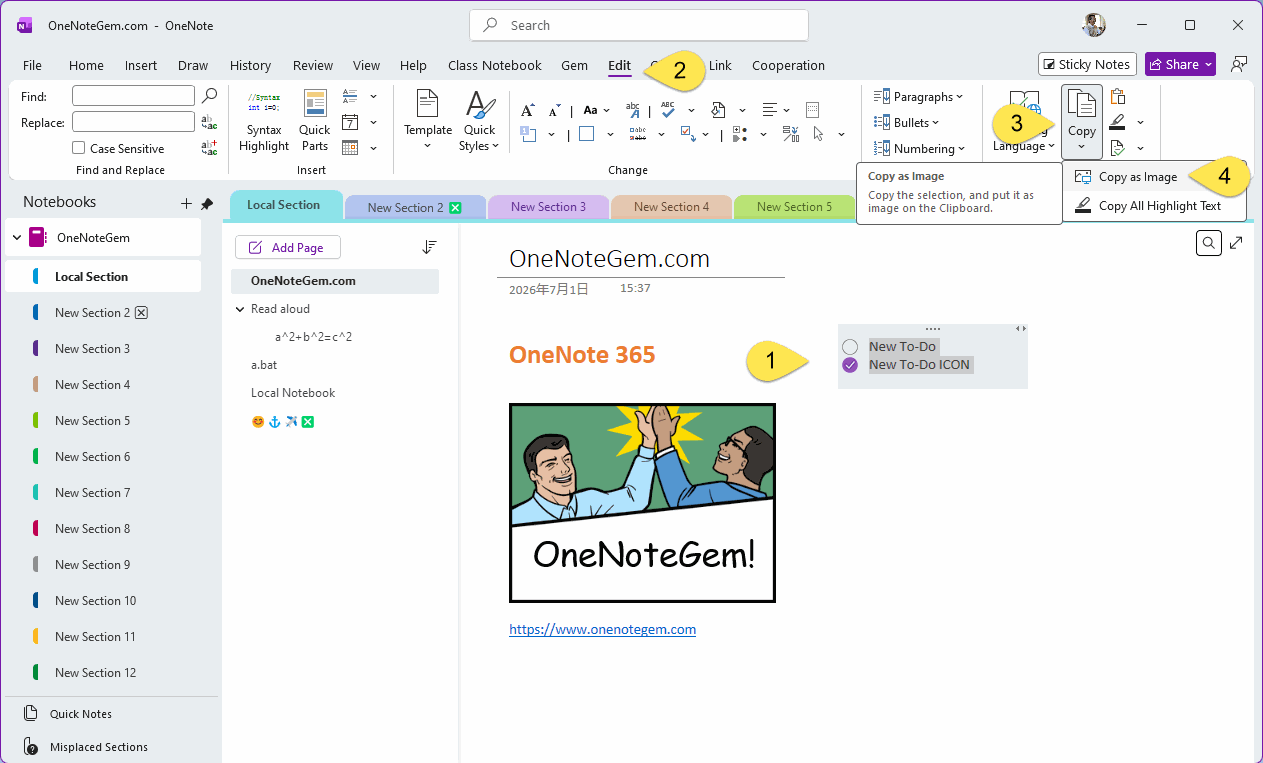
- First, on the current page of OneNote, select the content you want to copy.
- Then click the "Edit" tab of the Gem
- “Copy” menu
- “Copy as Image” menu item
This feature copies the selected content and places it in image format on the clipboard.
Press Ctrl+V to Paste as an Image
In the other app's input box, press the shortcut Ctrl+V to paste.You can see that the pasted content is in image format.
Related Documents
- How to Resolve OneNote Lost all Spaces When You Copy Code from Android Studio and Paste to OneNote?
- Copy all Highlight Text in Current OneNote Page to Clipboard
- Paste images to OneNote as original size
- Copy OneNote text to clipboard as plain text, and paste to other applications as plain text.
- Paste rich text into OneNote without loses formatting

