Quickly Jump to a Notebook in Office OneNote
If you have opened many notebooks in Office OneNote, finding and jumping to a specific notebook becomes difficult.
The notebook grouping feature of "OneNote Gem - Favorites" offers a quick jump to an opened OneNote notebook.
Create a new "All Notebooks" notebook group
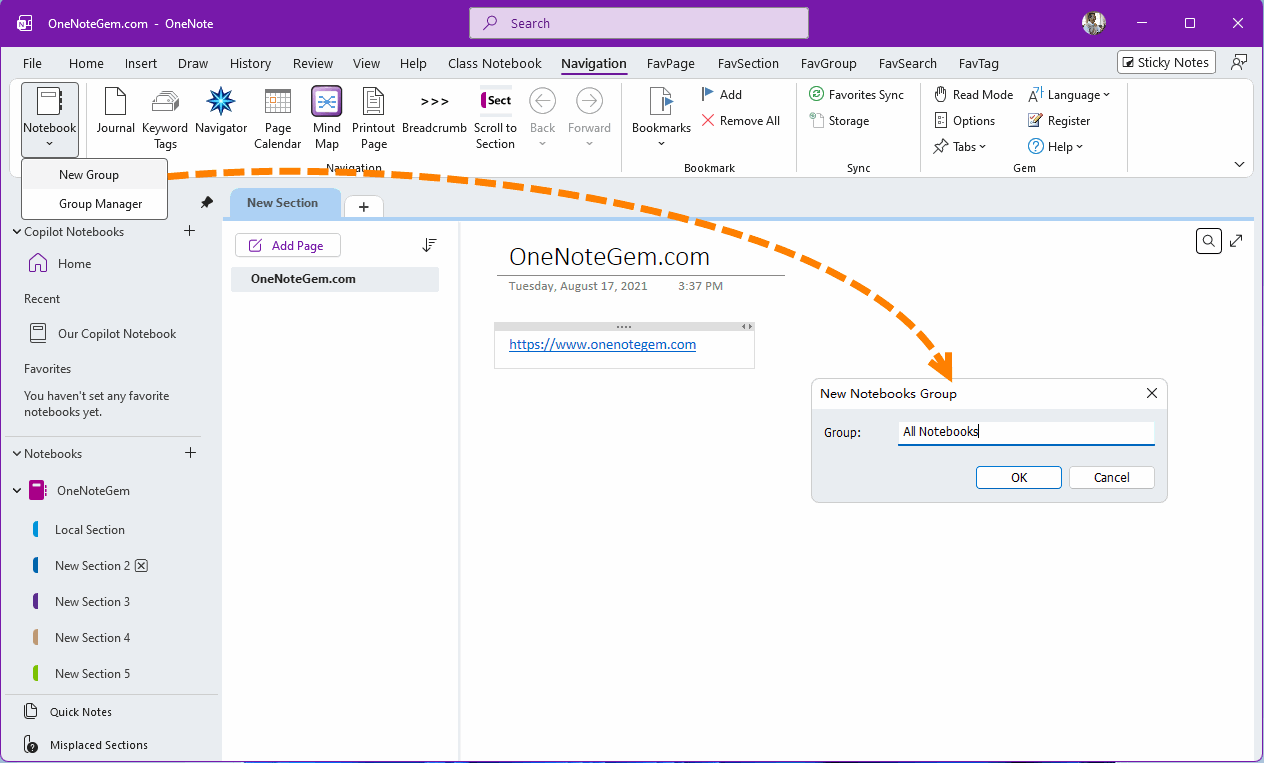
In "OneNote Gem - Favorites", click "Navigation" tab -> "Notebook" menu -> "New Group" menu item.
In the pop-up "New Notebook Group" window, enter: All notebooks.
Add all notebooks to this group
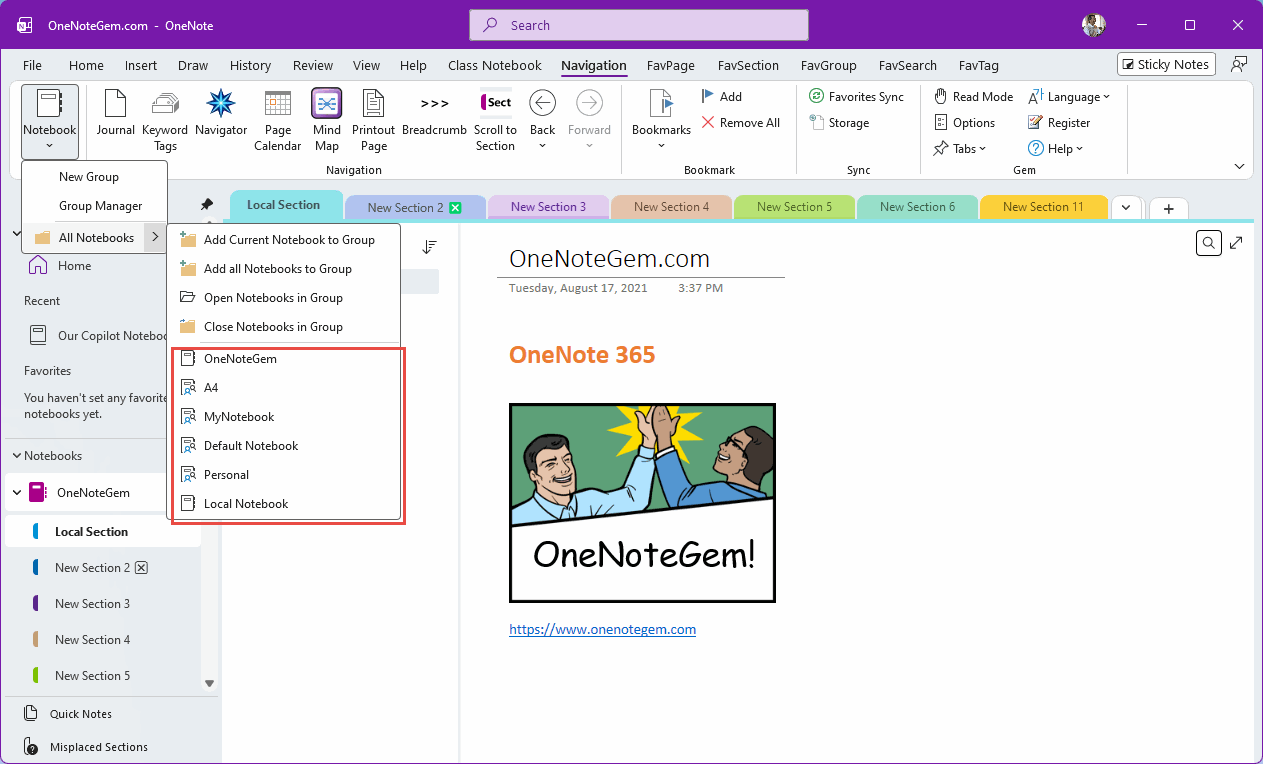
Then, under the "Notebooks" menu, a new submenu called "All Notebooks" will appear.
Then click the "Add all Notebooks to Group" menu item.

List all opened notebooks in the group
When you click the "All Notebooks" submenu, you will see all the notebooks that have been opened.
Click and Jump to a Notebook
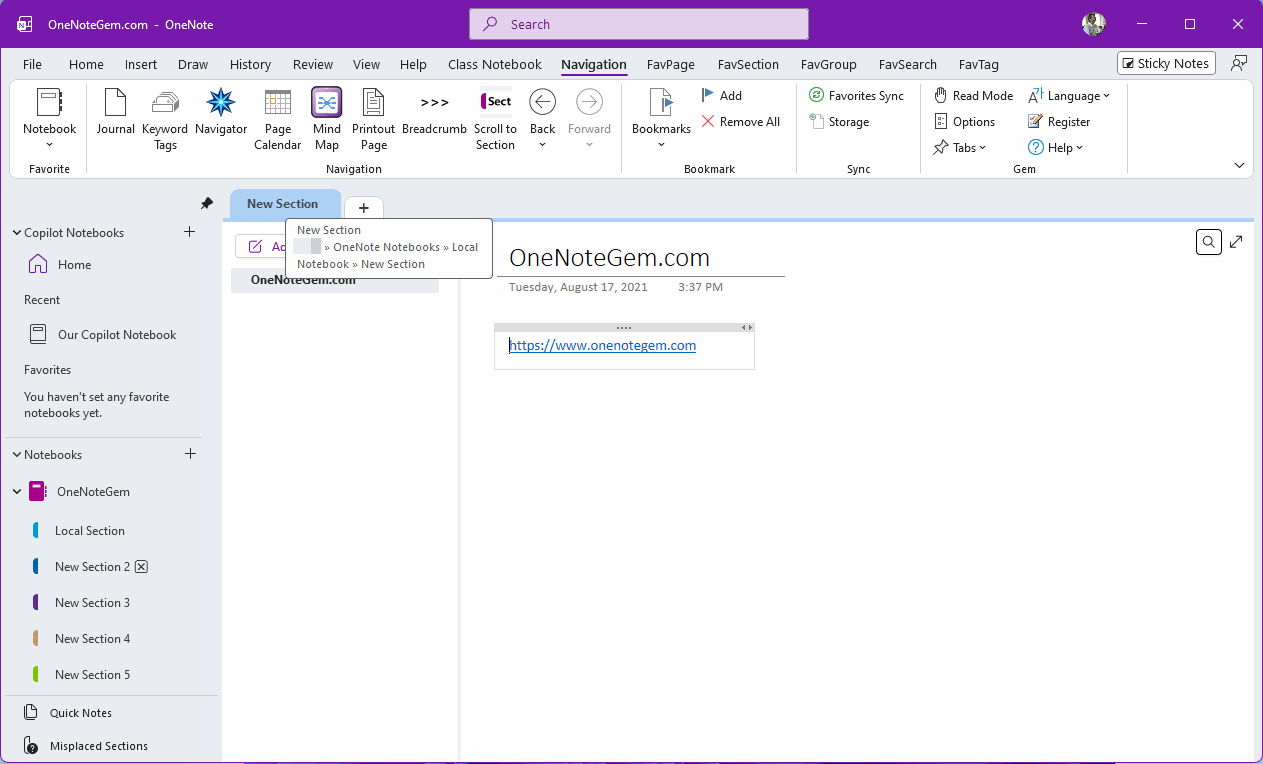
We only need to click a specific menu item on a notebook to jump to that notebook.
Defects
This kind of jump in Office OneNote has a flaw: it only shows the page of the notebook. However, in the left notebook tree pane, there is no scroll to that notebook or section. This leads to difficulties in further navigation use.