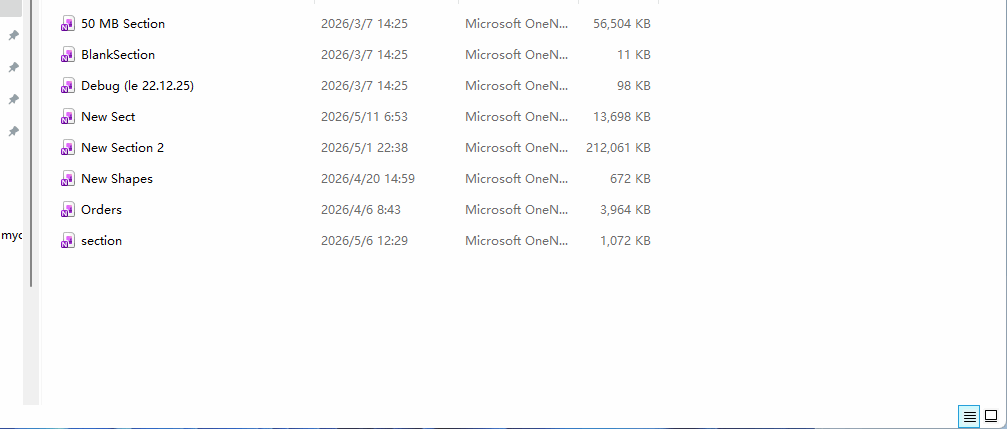
OneNote Section .one Files
There are a batch of OneNote section files (.one files) that I want to import into Office OneNote on Windows.
Import .one files in bulk using the OneNote Batch
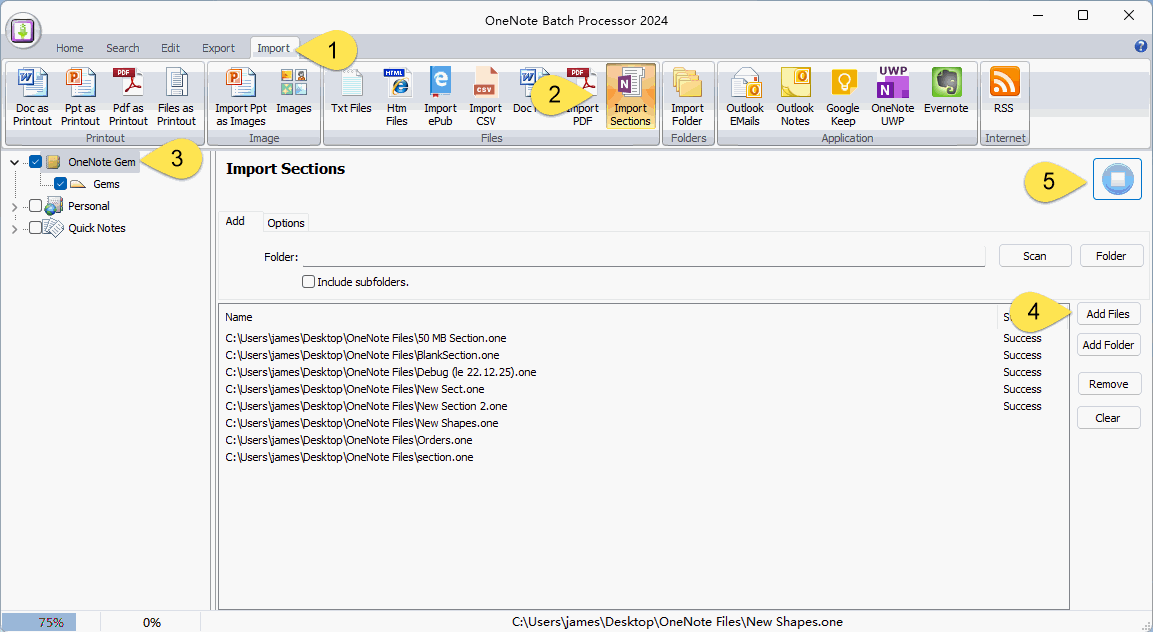
The following steps are to import these files into Office OneNote using the Import Sections feature of the OneNote Batch processor:
-
Click “Import” tab
-
Click “Import Sections” feature
-
Check the target notebook in the left notebook tree: “OneNote Gem” notebook (the sections will be imported into this notebook)
-
Click the "Add Files" button on the right to add the .one files you need to import. (Shown in the middle list)
-
Finally, click the Start button on the right to start importing the .one files into the “OneNote Gem” notebook one by one.
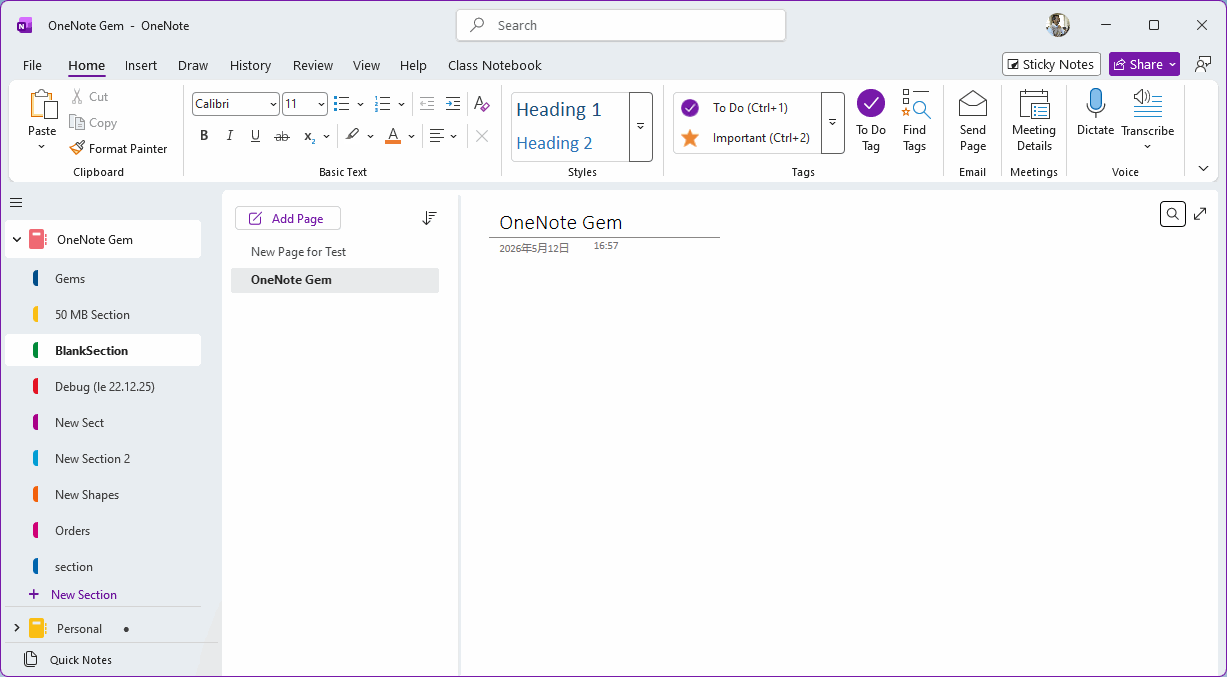
View imported Sections in Office OneNote
After the OneNote Batch import is completed, run OneNote and you can see the imported sections in the “OneNote Gem” notebook.