How to recover sections that disappeared due to moving or renaming in the Mac OneNote client?
Moving or renaming a section by the OneNote client may result in the loss of the section. This has been a stubborn disease for many years.
Now, OneNote Batch for Mac provides a feature to find these types of missing sections.
It maybe finds these missing sections.
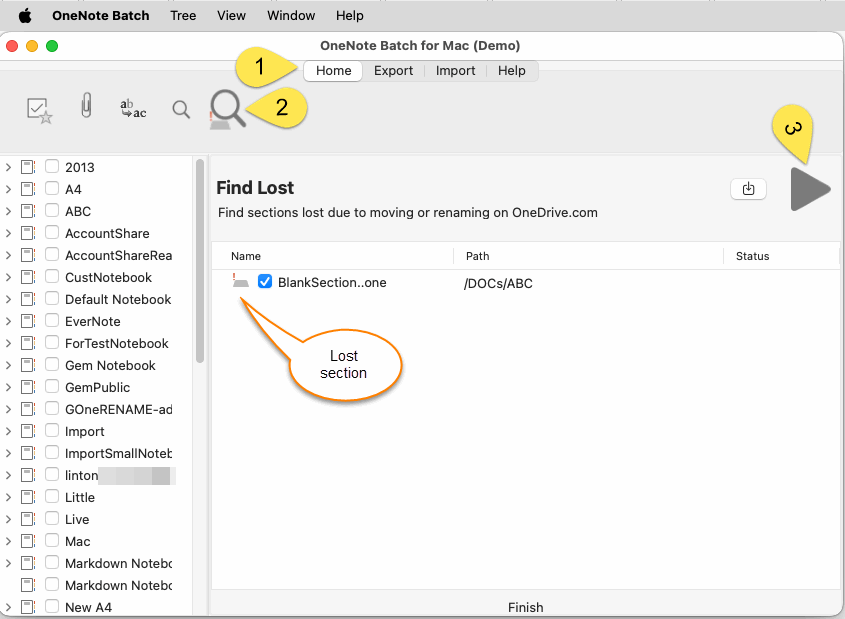
OneNote Batch for Mac will start search the lost sections and list them.
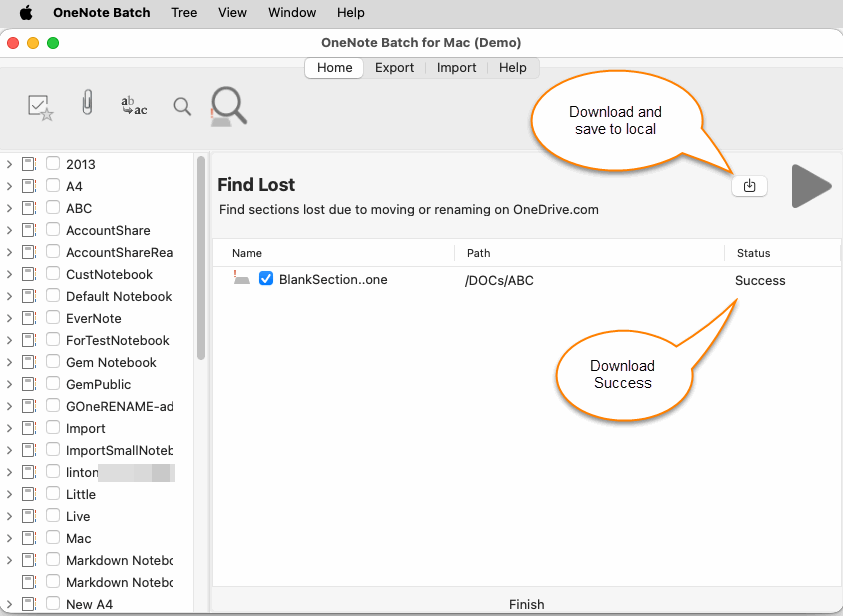
Then, click “Save” button, and choose the local folder, OneNote Batch for Mac will download the checked section files.
Now, OneNote Batch for Mac provides a feature to find these types of missing sections.
It maybe finds these missing sections.
Find Lost Sections
In OneNote Batch for Mac, follow steps:- Click “Home” tab
- Click “Find Lost Sections” feature
- Then, click “Start” button.
OneNote Batch for Mac will start search the lost sections and list them.
Download and Save Section Files
If it finds the missing sections, you can tick the boxes to choose which ones to download.Then, click “Save” button, and choose the local folder, OneNote Batch for Mac will download the checked section files.
View Downloaded Section Files
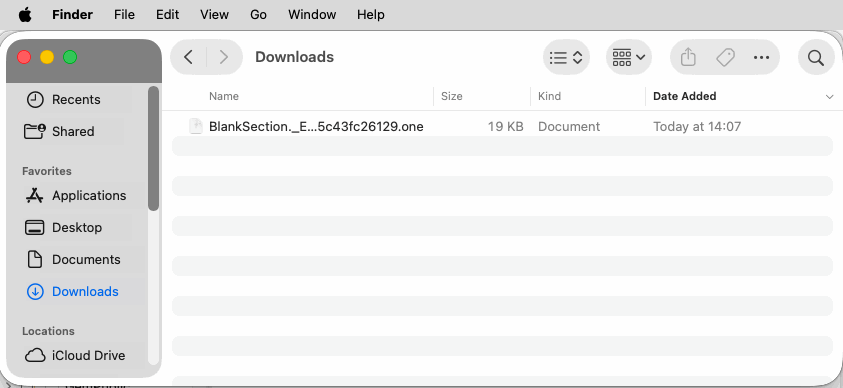
After downloading, we can view the downloaded .one section file through Mac Finder.